How to reset MyRapid MFA
Contractors and trainees
- The user needs to sign in to MyRapid with their password and click on ‘Reset MyRapid MFA’ link when it comes to MFA screen:
- The system will check if the user already has a mobile. If yes, proceed to the next step. If no, the user will not be able to reset MFA and needs to contact Rapid Global.
- The system will send a validation code to the user mobile, and the user needs to enter the code on the screen:
- If the code is valid, the user’s MFA will be reset.
Client administrators:
- The user needs to sign in to MyRapid with their password and click on Reset MFA when it comes to MFA screen:
- The system will check if the user already has a mobile. If yes, proceed to the next step. If no, the user will not be able to reset MFA and needs to contact Rapid Global.
- The system will send a validation code to the user mobile, and the user needs to enter the code on the screen:
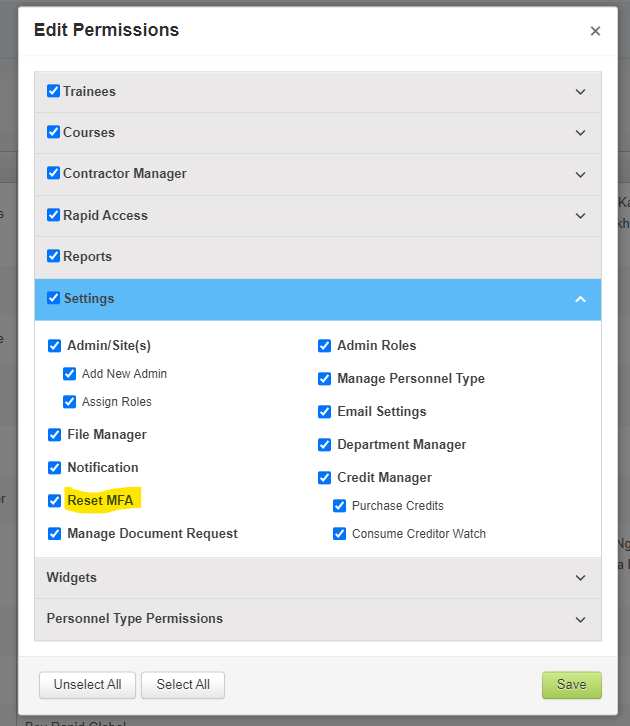
- If the code is valid, an email address 'MFA Reset approval pending' will be sent to all admins of the package, who have the 'Reset MFA' permission (See Appendix 1 for how to grant 'Reset MFA' permission to an admin):
- The main admin will need to manually identify the user and if that request is authentic, the main admin will login to the system and go to Admin/Site page and click on the Approve button to reset this admin:
- An email 'MFA Reset Completed' will be sent to the the client admin informing the MFA has been reset.
How to grant 'Reset MFA' Permission to an admin
The 'Reset MFA' permission needs to be granted to a role, and then add the admin to the role: